Contact Form
Showing posts with label back up. Show all posts
Auto Cloud Back Up of Your Photos - pt. 2
The Auto Upload (also know as Camera Upload, Instant Upload, Auto Back Up, Photo Sync) for the photos you take with your mobile device is a handy feature that can save you a lot of troubles in case your phone or tablet goes missing.
Mega is one of the cloud storage services that provide that feature.
The Photo Sync is really easy to use, but there is a trick. Your photos will be uploaded instantly only of you use an iOS device. Android users must open the app in order to sync photos. Not very Android-friendly of you, Mega!
The settings are similar with every other service, but Mega has a lot to work and upgrade on this feature.
The last one is a personal favorite - Copy.com
Copy is a small and relatively new service, but it is in no way inferior to the giants in the cloud business. The feature there is called PhotoCopy. And is simple and clean. There options only for enablening and using WiFi. The service creates a PhotoCopy folder in your account and uploads the pictures from your mobile device there.
The last one is a personal favorite - Copy.com
Copy is a small and relatively new service, but it is in no way inferior to the giants in the cloud business. The feature there is called PhotoCopy. And is simple and clean. There options only for enablening and using WiFi. The service creates a PhotoCopy folder in your account and uploads the pictures from your mobile device there.
Posted in auto back up, back up, camera upload, cloud storage, free cloud storage, instant upload, photo sync, pHotoCopy, photos
How To Back Up Your Photos
Cloud storage have a lot of advantages, compared to external hard drives, flash drives and so on. One of the sweetest features cloud services provide is the instant upload of the pictures taken with your mobile device camera.
Surprisingly few clouds provide this feature, but the trend is to develop this particular option.
Dropbox, of course, is the first service with the wanted feature. It's called Camera Uploads and you have to do is sign in with the app and go to the settings panel. From there you should turn on the camera upload and select the connection type you prefer (Wi-Fi or data plan) and what to upload (photos and videos or only photos). The Camera Upload will not work if your battery is running out of charge. But will automatically resume when you plug the device in.
The next one is called Bitcasa and is way smaller then Dropbox, but that doesn't make it any worse.
The settings are almost identical - just go to your mobile app and turn on the Automatic Camera Back up. Options are similar as dropbox's camera upload.
Third service is Google Plus. Not Drive. It's a mystery!
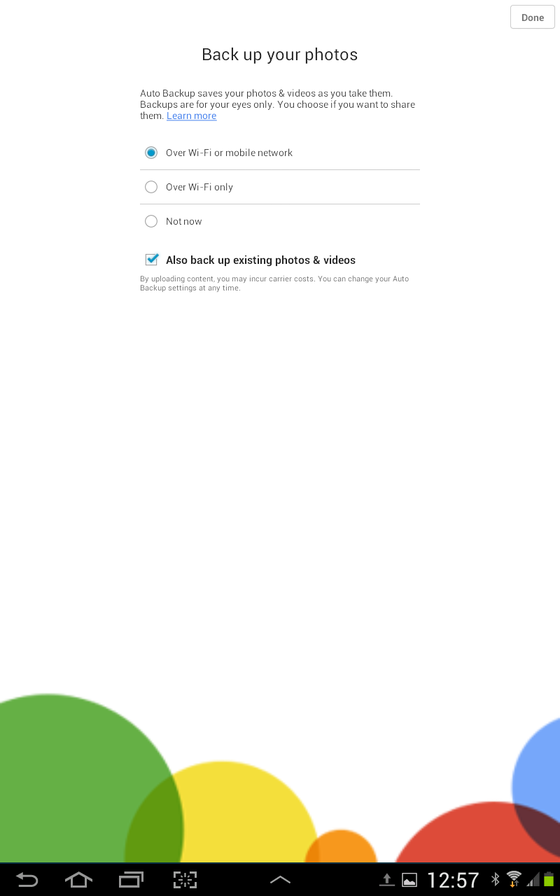
If you use Google service probably you are a fan of GoogleDrive, but the Auto Back up is strictly Google Plus feature. If you turn it on, your pictures will be uploaded to your G+ photos, but won't be public visible. It seems Google is more interested in sharing you photos, than just storing them, that is why they made it really simple to post them directly into the social media.
The settings are almost identical - just go to your mobile app and turn on the Automatic Camera Back up. Options are similar as dropbox's camera upload.
Third service is Google Plus. Not Drive. It's a mystery!
If you use Google service probably you are a fan of GoogleDrive, but the Auto Back up is strictly Google Plus feature. If you turn it on, your pictures will be uploaded to your G+ photos, but won't be public visible. It seems Google is more interested in sharing you photos, than just storing them, that is why they made it really simple to post them directly into the social media.
Posted in auto back up, back up, camera upload, cloud storage, free cloud storage, instant upload, photos
Cloud Storage 101 - How to choose
If you have a busy and diverse lifestyle like most people, you really need a cloud storage - not only for your files, but to back up all your data as well. Backing up is the single most important thing for you in order to be sure that your hard work will not be lost.
Choosing an online back up cloud storage may seem difficult and complicated, but actually it's not. You just have to ask your self a few questions and answer them your self.
- How much space will you need? And think one step ahead, "one step" meaning "at least an year ahead". The good news here is that even if you chose a free cloud storage service with limited space, most cloud storage providers offer an upgrade to more space and possibly more features.
- Can you afford it if its cost goes up? Online cloud storages are not too expensive (100GB Google drive costs $4.99/mo. Dropbox goes $9.99, sugarSync - $7,49 and justCloud hits it low with $3,95). But if your budget is limited you should think about combining a few of the free online storage services, but that will possibly make your life harder.
- How often is your stored data going to be accessed? If you need constant access from web, desktop and mobile you should search for an online storage back up provider with all of these features. If you plan to only back up the important files you are free to chose from services that have limited ways to access your files, but provide more free storage space.
- What information is going to be stored? With so many services to choose from you should look for the one that fits you. For instance - if you plan to store mostly music files make sure that the cloud storage you choose has a music played. If you are going to store documents, there are services that provide online editing.